Remember when setting up a development environment meant:
- Install MySQL
- Install Redis
- Install Nginx
- Configure everything manually
- Spend 4 hours debugging why Redis won't start
- Realize you have 3 different versions of PostgreSQL somehow
- Give up and push to dev server to test
Those days are over.
Docker Compose lets you define your ENTIRE infrastructure as code. One command to start everything. One command to tear it down. No pollution of your laptop. No "works on my machine" excuses.
In 2025, if you're not using Docker Compose for local development, you're making life harder than it needs to be.
Once you master local orchestration, the next step is understanding Kubernetes for production-scale container orchestration.
What Is Docker Compose?
It's a tool for defining and running multi-container Docker applications.
Instead of:
docker run -p 3306:3306 mysql
docker run -p 6379:6379 redis
docker run -p 80:80 nginx
# Configure networking manually
# Set up volumes manually
# Remember all these commands
You write:
# docker-compose.yml
services:
  db:
    image: mysql:8
  cache:
    image: redis:alpine
  web:
    image: nginx:alpine
Then run:
docker-compose upEverything starts. Everything is networked. Everything just works.
Installation (2025)
Docker Compose v2 is now built into Docker:
# Check version
docker compose version

# If you don't have it
brew install docker-compose  # macOS
apt-get install docker-compose-plugin  # Ubuntu
Note: It's docker compose (space) not docker-compose (hyphen) in 2025.
Your First Compose File
Let's build a basic web app stack: Nginx, Node.js app, PostgreSQL, Redis.
# docker-compose.yml
services:
  # Frontend proxy
  nginx:
    image: nginx:alpine
    ports:
      - "80:80"
    volumes:
      - ./nginx.conf:/etc/nginx/conf.d/default.conf:ro
    depends_on:
      - app

  # Node.js application
  app:
    build: .
    environment:
      - NODE_ENV=development
      - DB_HOST=db
      - REDIS_HOST=cache
    volumes:
      - .:/app
      - /app/node_modules  # Don't overwrite node_modules from container
    ports:
      - "3000:3000"

  # Database
  db:
    image: postgres:16-alpine
    environment:
      POSTGRES_DB: myapp
      POSTGRES_USER: dev
      POSTGRES_PASSWORD: devpassword
    volumes:
      - db-data:/var/lib/postgresql/data
    ports:
      - "5432:5432"

  # Cache
  cache:
    image: redis:7-alpine
    ports:
      - "6379:6379"

volumes:
  db-data:  # Named volume for database persistence
Start everything:
docker compose upStop everything:
docker compose downThat's it. Full stack running locally.
Service Dependencies & Health Checks (The 2025 Way)
The problem: Your app starts before PostgreSQL is ready. App crashes trying to connect.
Old solution (doesn't work well):
depends_on:
  - db
This only waits for the container to START, not for PostgreSQL to be READY.
2025 solution: Health Checks
services:
  db:
    image: postgres:16-alpine
    environment:
      POSTGRES_DB: myapp
      POSTGRES_USER: dev
      POSTGRES_PASSWORD: devpassword
    healthcheck:
      test: ["CMD-SHELL", "pg_isready -U dev"]
      interval: 5s
      timeout: 5s
      retries: 5
      start_period: 10s
    volumes:
      - db-data:/var/lib/postgresql/data

  app:
    build: .
    depends_on:
      db:
        condition: service_healthy  # Wait for health check to pass
    environment:
      - DB_HOST=db
Now app won't start until PostgreSQL is actually ready to accept connections.
Health check examples for common services:
# MySQL
healthcheck:
  test: ["CMD", "mysqladmin", "ping", "-h", "localhost"]
  interval: 5s
  timeout: 5s
  retries: 5

# Redis
healthcheck:
  test: ["CMD", "redis-cli", "ping"]
  interval: 5s
  timeout: 5s
  retries: 5

# Nginx
healthcheck:
  test: ["CMD", "curl", "-f", "http://localhost/health"]
  interval: 10s
  timeout: 5s
  retries: 3
Volumes: Data That Survives Restarts
Named Volumes (For Databases)
Problem: You run docker compose down, and your database data is GONE.
Solution: Named volumes persist data on the host.
services:
  db:
    image: postgres:16-alpine
    volumes:
      - db-data:/var/lib/postgresql/data  # Named volume

volumes:
  db-data:  # Define the volume
Even after docker compose down, data persists. Next docker compose up restores your database.
Bind Mounts (For Code)
Use case: You edit code on your laptop, want changes reflected in the container instantly.
services:
  app:
    build: .
    volumes:
      - .:/app  # Bind mount current directory to /app in container
      - /app/node_modules  # Anonymous volume to protect node_modules
What happens:
./src/app.jschanges on your laptop- Container sees the change immediately
- Your dev server (nodemon, webpack-dev-server) auto-reloads
The node_modules trick: We create an anonymous volume to prevent the host's (possibly empty) node_modules from overwriting the container's node_modules.
Hot Reload / Watch Mode (2025 Feature)
Docker Compose now has built-in file watching:
services:
  app:
    build: .
    volumes:
      - .:/app
    develop:
      watch:
        - action: sync
          path: ./src
          target: /app/src
          ignore:
            - node_modules/
        - action: rebuild
          path: ./package.json
What this does:
- Changes to
./srcfiles sync instantly (no rebuild) - Changes to
package.jsontrigger a container rebuild
Start with watch mode:
docker compose up --watchYour app reloads on code changes without manual restarts. Magic.
Networks: Isolation and Communication
By default, Compose creates ONE network where all services can talk to each other by service name.
Example:
services:
  app:
    # Can connect to: http://db:5432 and http://cache:6379

  db:
    # Accessible at hostname "db"

  cache:
    # Accessible at hostname "cache"
Custom Networks (For Segmentation)
Sometimes you want isolation:
networks:
  frontend-net:  # Public-facing services
  backend-net:   # Database/cache layer

services:
  nginx:
    networks:
      - frontend-net

  app:
    networks:
      - frontend-net  # Can talk to nginx
      - backend-net   # Can talk to db and cache

  db:
    networks:
      - backend-net  # CANNOT talk to nginx

  cache:
    networks:
      - backend-net
Security benefit: nginx can't directly access the database. It MUST go through the app.
Environment Variables
Method 1: .env File
Create a .env file:
DB_PASSWORD=supersecret
REDIS_PORT=6379
API_KEY=abc123
Don't commit .env to git! Add to .gitignore.
Reference in docker-compose.yml:
services:
  app:
    environment:
      - DB_PASS=${DB_PASSWORD}
      - REDIS_PORT=${REDIS_PORT}
Method 2: env_file
services:
  app:
    env_file:
      - .env  # Loads all variables from .env
Method 3: Default Values
environment:
  - DB_HOST=${DB_HOST:-localhost}  # Default to localhost if not set
Production-Like Local Environment
Here's a full example that mimics production:
# docker-compose.yml
name: myapp

services:
  # Nginx reverse proxy
  nginx:
    image: nginx:alpine
    ports:
      - "80:80"
      - "443:443"
    volumes:
      - ./nginx/nginx.conf:/etc/nginx/nginx.conf:ro
      - ./nginx/conf.d:/etc/nginx/conf.d:ro
      - ./ssl:/etc/nginx/ssl:ro
    depends_on:
      app:
        condition: service_started
    networks:
      - frontend

  # Node.js application (2 instances for load balancing)
  app:
    build:
      context: .
      dockerfile: Dockerfile
      target: development  # Multi-stage Dockerfile (use optimized builds)
    environment:
      - NODE_ENV=development
      - DB_HOST=db
      - REDIS_HOST=cache
      - PORT=3000
    volumes:
      - .:/app
      - /app/node_modules
    depends_on:
      db:
        condition: service_healthy
      cache:
        condition: service_started
    networks:
      - frontend
      - backend
    deploy:
      replicas: 2  # Run 2 instances (load balanced by nginx)

  # PostgreSQL database
  db:
    image: postgres:16-alpine
    environment:
      POSTGRES_DB: ${DB_NAME:-myapp}
      POSTGRES_USER: ${DB_USER:-dev}
      POSTGRES_PASSWORD: ${DB_PASSWORD:-devpass}
    volumes:
      - db-data:/var/lib/postgresql/data
      - ./db/init.sql:/docker-entrypoint-initdb.d/init.sql  # Initial schema
    networks:
      - backend
    healthcheck:
      test: ["CMD-SHELL", "pg_isready -U ${DB_USER:-dev}"]
      interval: 5s
      timeout: 5s
      retries: 5

  # Redis cache
  cache:
    image: redis:7-alpine
    command: redis-server --appendonly yes  # Enable persistence
    volumes:
      - cache-data:/data
    networks:
      - backend

  # Background worker (same code as app, different command)
  worker:
    build:
      context: .
      dockerfile: Dockerfile
      target: development
    command: npm run worker  # Different entry point
    environment:
      - NODE_ENV=development
      - DB_HOST=db
      - REDIS_HOST=cache
    depends_on:
      db:
        condition: service_healthy
      cache:
        condition: service_started
    volumes:
      - .:/app
      - /app/node_modules
    networks:
      - backend

  # Monitoring (Prometheus + Grafana would go here)

networks:
  frontend:
  backend:

volumes:
  db-data:
  cache-data:
Start everything:
docker compose upYou now have:
- Load-balanced app (2 instances)
- PostgreSQL with persistent data
- Redis with persistent data
- Nginx reverse proxy
- Proper network segmentation
- Health checks ensuring correct startup order
Useful Commands
# Start in background (detached mode)
docker compose up -d

# View logs
docker compose logs
docker compose logs -f app  # Follow logs for specific service

# View running services
docker compose ps

# Execute command in service
docker compose exec app sh
docker compose exec db psql -U dev myapp

# Restart specific service
docker compose restart app

# Rebuild specific service
docker compose build app
docker compose up -d --build app  # Build and restart

# Stop everything but keep volumes
docker compose stop

# Stop and REMOVE everything (including volumes)
docker compose down -v

# Scale a service
docker compose up -d --scale app=5

# View resource usage
docker compose stats
Override Files for Different Environments
Base file: docker-compose.yml (shared settings)
Development overrides: docker-compose.override.yml
services:
  app:
    volumes:
      - .:/app  # Bind mount for hot reload
    environment:
      - DEBUG=true
Production-like testing: docker-compose.prod.yml
services:
  app:
    build:
      target: production  # Use production stage of Dockerfile
    environment:
      - NODE_ENV=production
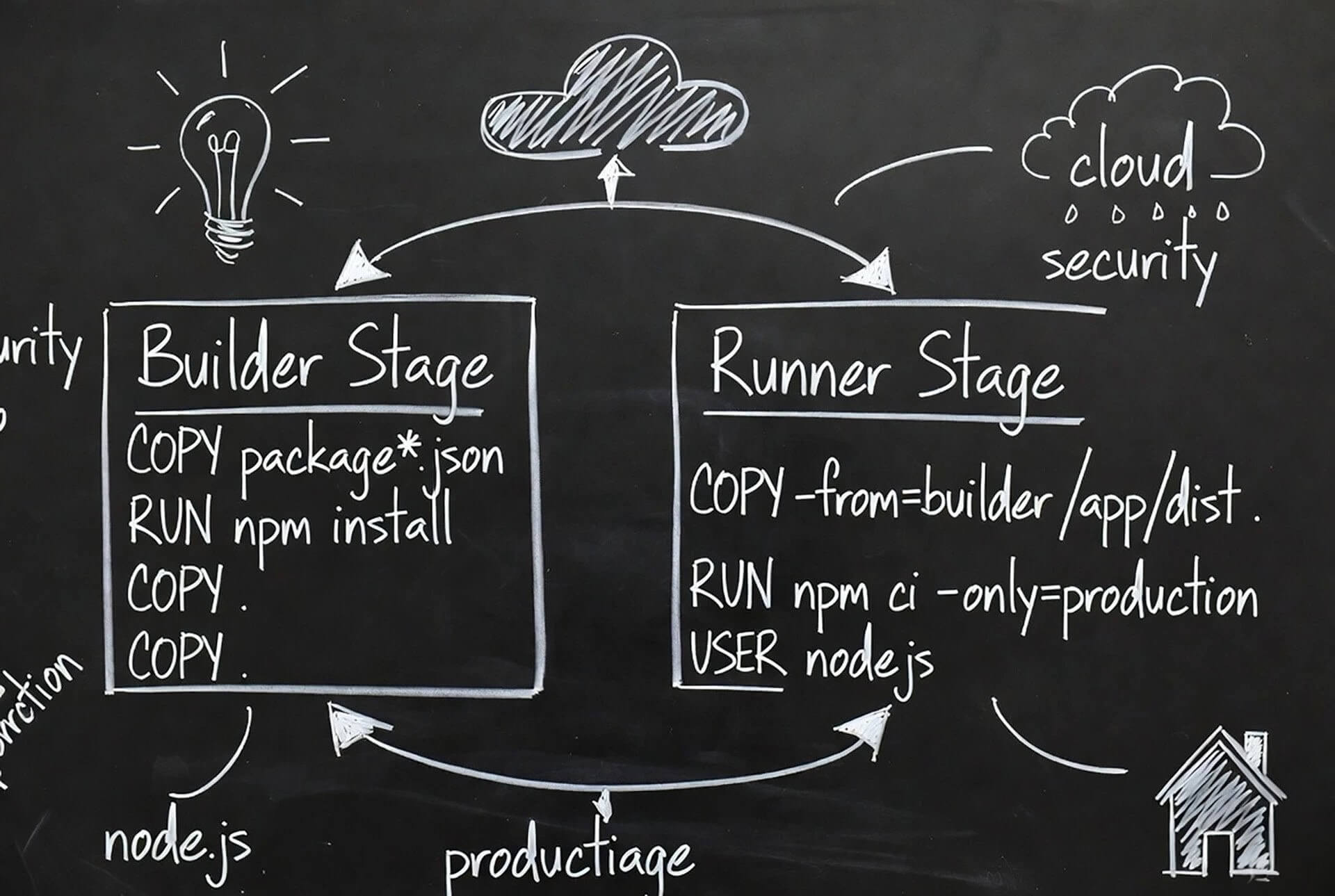
Learn to create optimized production images with Docker multi-stage builds - cutting image sizes by 10x or more.
Run with override:
# Automatically uses docker-compose.override.yml
docker compose up

# Explicitly use production config
docker compose -f docker-compose.yml -f docker-compose.prod.yml up
Troubleshooting
"Port already in use"
Error: Bind for 0.0.0.0:5432 failed: port is already allocated
Cause: You have PostgreSQL running locally on port 5432.
Fix: Either stop local PostgreSQL or change the port mapping:
ports:
  - "5433:5432"  # Map to 5433 on host instead
"Network not found"
Error: Network X not found
Fix: Create network explicitly:
docker network create myapp-networkOr let Compose create it:
networks:
  myapp-network:
    driver: bridge
Services can't talk to each other
Problem: app can't connect to db
Fix: Ensure both are on the same network:
services:
  app:
    networks:
      - backend
  db:
    networks:
      - backend

networks:
  backend:
Use service name as hostname: DB_HOST=db not DB_HOST=localhost
Database data persists when you don't want it
Problem: You want a fresh database but old data remains.
Fix: Delete volumes:
docker compose down -v # -v deletes volumesBest Practices
- Use
.envfor secrets - Never commit passwords to git - Add health checks - Prevent race conditions
- Use named volumes for data - Don't lose your database
- Use bind mounts for code - Enable hot reload
- Set resource limits - Don't let one service eat all RAM
- Create override files - Different configs for dev/test/prod
- Keep services small - One concern per service
- Tag images explicitly - Don't use
latestin production
The Bottom Line
Docker Compose in 2025 is the standard for local development.
Benefits:
- One command to start everything
- Identical environment for all team members
- No pollution of your local machine
- Easy to reset and start fresh
- Production-like setup locally
When you're ready to deploy to production, compare EC2 vs ECS vs Fargate for AWS container deployment options. Keep costs under control with cloud cost optimization strategies.
The workflow:
- Clone repo
cp .env.example .env(configure)docker compose up- Start coding
No 4-hour setup. No "works on my machine." Just code.
Example: See Docker Compose in action with a Spring Boot REST API built with Kotlin - complete with PostgreSQL and Redis in docker-compose.yml.
If you're still manually installing MySQL and Redis on your laptop in 2025, you're doing it wrong. Use Docker Compose. Your future self will thank you.
You now have the power (and knowhow) to containerize your local development environment like the professional you (you hope you) are.